

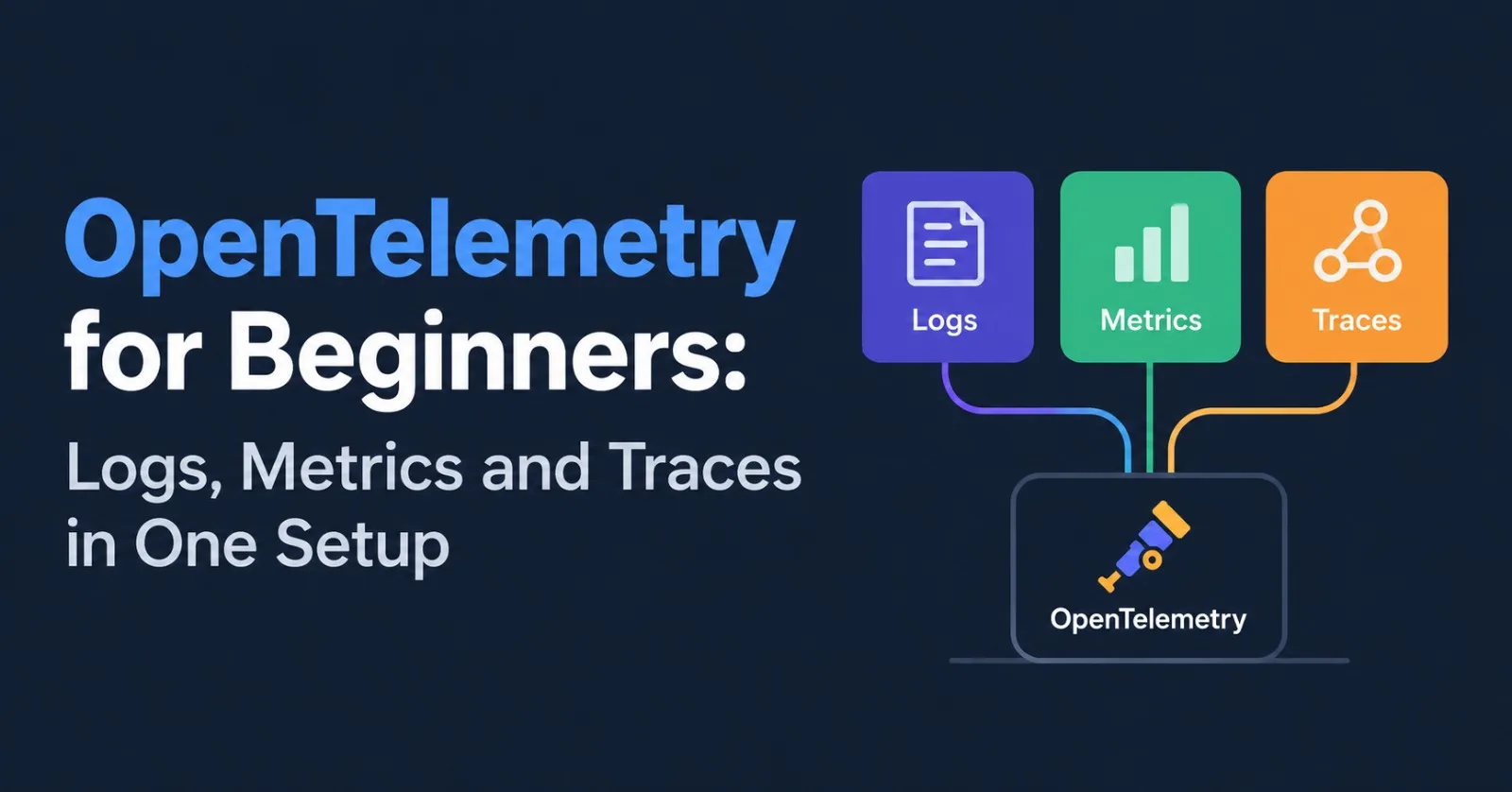
Picture this. A customer says checkout feels slow. You open the logs and find thousands of lines.
Which request was theirs? Which step was slow? Was it just them, or everyone?
Logs alone can't answer all of that. You need three kinds of data about the same request, and a way to connect them.
That's what OpenTelemetry gives you. It has a reputation for being complicated, but the core idea is small.
In this post you'll send traces, metrics and logs from a small FastAPI app into Grafana. The backend is one Docker command. The boilerplate is handled by zero-code instrumentation. You write a few lines yourself for the interesting parts.
Heads up on Python logs: In OpenTelemetry Python, traces and metrics are marked Stable, but logs are still marked Development. Logging works fine for this walkthrough. Just expect the logs side to change more than the other two.
What OpenTelemetry is (and what it isn't)
OpenTelemetry, or OTel for short, is an open standard and a set of tools for producing telemetry. That's the traces, metrics and logs your software emits about itself.
It's a Cloud Native Computing Foundation project, and it grew out of two older projects, OpenTracing and OpenCensus.
The key word is producing. OpenTelemetry doesn't store or display anything. You still need a backend for that.
The win is that you instrument once, and your code doesn't care which backend receives the data.
Here are the pieces you'll meet:
Piece | What it does | In this post |
|---|---|---|
API and SDK | The code you call, and the engine behind it that batches and exports data | Installed with |
Instrumentation | Libraries that create telemetry for you (web frameworks, HTTP clients, databases) | FastAPI and |
OTLP | The format and protocol the data travels in | gRPC on port 4317 |
Collector | A service that receives, processes and forwards telemetry | Built into the Grafana image |
Backend | Where the data is stored and viewed | Tempo, Prometheus, Loki and Grafana |
The three signals in plain words
Signal | Plain-English meaning | Question it answers | Example |
|---|---|---|---|
Traces | The story of one request as it moves through your code | Where did this request spend its time? |
|
Metrics | Numbers measured over time | How often? How slow? Is it getting worse? | Declined orders per minute |
Logs | Timestamped messages, in words | What exactly happened? |
|
Two terms you'll see everywhere. A span is one step inside a trace, like "charge the card". A trace is a tree of spans.
Spans carry attributes, which are key-value details such as order.item = keyboard.
Which signal do you reach for first? It depends on the question:
flowchart TD
    Q{"What do you want to find out?"}
    Q -->|"Is something wrong overall?<br/>How often? How slow?"| M["Metrics"]
    Q -->|"Where did this one request<br/>spend its time?"| T["Traces"]
    Q -->|"What exactly happened,<br/>in words?"| L["Logs"]
    M --> N1["Spot the spike, then open a trace"]
    T --> N2["Open the slow span, then read its logs"]
    L --> N3["Follow the trace ID to the full story"]
The real power is in the links. A metric spike leads you to a trace. A span leads you to the logs written during it.
That last jump works because each log record carries the trace ID and span ID of the request that wrote it. OpenTelemetry adds them for you.
What we'll build
A tiny orders API with one endpoint, POST /orders. It "charges a card", which is just a short sleep with a 25% chance of being declined.
That gives you slow requests and failures to look at. Here's how the data flows:
flowchart LR
    App["Your app<br/>OpenTelemetry SDK"] -->|"OTLP"| Col["OpenTelemetry Collector"]
    subgraph LGTM["grafana/otel-lgtm (one container)"]
        Col -->|traces| Tempo["Tempo"]
        Col -->|metrics| Prom["Prometheus"]
        Col -->|logs| Loki["Loki"]
        Tempo --> Graf["Grafana :3000"]
        Prom --> Graf
        Loki --> Graf
    end
    You([You]) --> Graf
Each request will produce a trace shaped like this:
flowchart TD
    A["POST /orders<br/>created automatically by the FastAPI instrumentation"] --> B["process_order<br/>a span you write"]
    B --> C["charge_card<br/>a span you write"]
The official docs make a useful point here. Automatic instrumentation captures what happens at the edges of your system, like inbound and outbound HTTP requests. It can't see what's going on inside your own code.
So the top span is free. The two inner spans, the counter and the histogram are yours.
You'll need Python 3.10 or newer (that's what OpenTelemetry Python supports), Docker, and a terminal.
Step 1: Start the backend
docker run -p 3000:3000 -p 4317:4317 -p 4318:4318 --rm -ti grafana/otel-lgtmThis is Grafana's otel-lgtm image. It bundles an OpenTelemetry Collector, Prometheus for metrics, Tempo for traces, Loki for logs and Grafana to look at all three.
The ports:
3000 is the Grafana UI
4317 is where OTLP over gRPC arrives
4318 is where OTLP over HTTP arrives
Open http://localhost:3000 and log in with user admin and password admin.
Development only: Grafana says this image is intended for development, demo and testing. The data lives inside the container, so it's gone when the container is. Don't use it as your production backend.
Step 2: Set up the project
mkdir orders-api && cd orders-api
python3 -m venv venv
source venv/bin/activate
pip install fastapi "uvicorn[standard]" opentelemetry-distro opentelemetry-exporter-otlp opentelemetry-instrumentation-logging
opentelemetry-bootstrap -a install
On Windows PowerShell, activate with .\venv\Scripts\Activate.ps1 and use python instead of python3.
What each piece does:
opentelemetry-distrobrings the API and SDK, plus two commands:opentelemetry-bootstrapandopentelemetry-instrument.opentelemetry-exporter-otlplets the app send data over OTLP.opentelemetry-instrumentation-loggingconnects Python'sloggingmodule to OpenTelemetry.opentelemetry-bootstrap -a installlooks at what's installed and adds the matching instrumentation. Here, that means FastAPI.
Run bootstrap after you install FastAPI, because it decides based on what it finds.
Step 3: Write the app
Create main.py:
import asyncio
import logging
import random
import time

from fastapi import FastAPI, HTTPException
from opentelemetry import metrics, trace
from pydantic import BaseModel, Field

app = FastAPI(title="orders-api")

# Let INFO records through.
logger = logging.getLogger("orders")
logger.setLevel(logging.INFO)

tracer = trace.get_tracer("orders.tracer")
meter = metrics.get_meter("orders.meter")

orders_processed = meter.create_counter(
    "orders.processed",
    description="Orders processed, by outcome",
)
payment_duration = meter.create_histogram(
    "payment.duration",
    unit="ms",
    description="Time spent charging the card",
)


class Order(BaseModel):
    item: str
    quantity: int = Field(ge=1, le=10)


class PaymentDeclined(Exception):
    """Raised when the pretend payment provider says no."""


async def charge_card(amount: float) -> None:
    started = time.perf_counter()
    with tracer.start_as_current_span("charge_card") as span:
        span.set_attribute("payment.amount", amount)
        try:
            await asyncio.sleep(random.uniform(0.05, 0.4))  # pretend to call a payment API
            if random.random() < 0.25:
                raise PaymentDeclined("card declined")
        finally:
            payment_duration.record((time.perf_counter() - started) * 1000)


@app.post("/orders")
async def create_order(order: Order):
    with tracer.start_as_current_span("process_order") as span:
        span.set_attribute("order.item", order.item)
        span.set_attribute("order.quantity", order.quantity)
        logger.info("Processing order: %s x%d", order.item, order.quantity)

        try:
            await charge_card(round(order.quantity * 9.99, 2))
            outcome = "paid"
            logger.info("Order paid: %s", order.item)
        except PaymentDeclined:
            outcome = "declined"
            logger.warning("Payment declined: %s", order.item)

        span.set_attribute("order.outcome", outcome)
        orders_processed.add(1, {"outcome": outcome})

    if outcome == "declined":
        raise HTTPException(status_code=402, detail="Payment declined")
    return {"status": "paid", "item": order.item}
You don't need to memorise any of it. These are the parts worth understanding.
Spans
tracer.start_as_current_span(...) opens a span for the length of the with block. A span opened inside another one becomes its child. That's how charge_card ends up under process_order.
set_attribute attaches details. Put anything here that will help you debug later, like the item or the amount.
There's a nice default too. If an exception escapes a with span block, the SDK records it on the span and marks the span as an error.
That's why a declined payment will show up as a red charge_card span, with no extra code from you.
Metrics
Two instruments, two jobs:
Counter: counts things, and only goes up. We add 1 for every order, labelled with its outcome.
Histogram: records measurements like durations. It lets you ask for percentiles later, such as "how slow are the slowest 5%?"
I record the duration in milliseconds on purpose. The default histogram buckets are tuned for millisecond-sized values: 5, 10, 25, 50 and so on up to 10,000.
Record seconds instead and almost everything lands in the first bucket, so your percentiles turn to mush.
Careful with metric attributes: Every unique combination of attribute values creates a new time series.
outcomehas two values, which is fine. A user ID or order ID would create millions. Keep high-detail values likeorder.itemon spans, where they're cheap.
Logs
There's no special OpenTelemetry logging call here. You keep using Python's logging, and OpenTelemetry attaches a handler that ships the records.
One gotcha: Python only lets WARNING and above through by default. So we set our logger to INFO, or the "Processing order" lines would silently vanish.
Following an older tutorial? Before OpenTelemetry Python 1.40.0 you had to set
OTEL_PYTHON_LOGGING_AUTO_INSTRUMENTATION_ENABLED=trueto turn on log instrumentation. In current versions you don't, as long asopentelemetry-instrumentation-loggingis installed.
Step 4: Run it with auto-instrumentation
Set a few environment variables, then start the app through opentelemetry-instrument.
macOS and Linux:
export OTEL_SERVICE_NAME=orders-api
export OTEL_TRACES_EXPORTER=otlp
export OTEL_METRICS_EXPORTER=otlp
export OTEL_LOGS_EXPORTER=otlp
export OTEL_EXPORTER_OTLP_ENDPOINT=http://localhost:4317
export OTEL_METRIC_EXPORT_INTERVAL=5000

opentelemetry-instrument uvicorn main:app --port 8000
Windows (PowerShell):
$env:OTEL_SERVICE_NAME = "orders-api"
$env:OTEL_TRACES_EXPORTER = "otlp"
$env:OTEL_METRICS_EXPORTER = "otlp"
$env:OTEL_LOGS_EXPORTER = "otlp"
$env:OTEL_EXPORTER_OTLP_ENDPOINT = "http://localhost:4317"
$env:OTEL_METRIC_EXPORT_INTERVAL = "5000"

opentelemetry-instrument uvicorn main:app --port 8000
What the variables do:
Variable | What it does |
|---|---|
| The name shown in Grafana. Skip it and your data shows up as |
| Where each signal goes. |
| Where the backend listens. This is the gRPC default, shown so you know where to change it. |
| Milliseconds between metric exports. Set low here so metrics show up quickly (more on that below). |
Your code contains no SDK setup, no exporter wiring, no FastAPI hooks and no log handler.
opentelemetry-instrument did all of that before your app started. It also creates the POST /orders span and some HTTP metrics for every request.
Skip
--reloadand--workersfor now. The auto-reloader spawns child processes and can break instrumentation. And withuvicorn --workers, the official troubleshooting guide says you get traces and metrics but no logs. For several workers, it recommends Gunicorn with Uvicorn workers, which exports all three.
Step 5: Send some traffic
In a second terminal, create load.py:
import json
import random
import urllib.error
import urllib.request

URL = "http://localhost:8000/orders"

for _ in range(40):
    body = json.dumps({
        "item": random.choice(["keyboard", "mouse", "monitor"]),
        "quantity": random.randint(1, 3),
    }).encode()
    request = urllib.request.Request(URL, data=body, headers={"Content-Type": "application/json"})
    try:
        urllib.request.urlopen(request)
        print("paid")
    except urllib.error.HTTPError as error:
        print("declined" if error.code == 402 else f"error {error.code}")
Run it a couple of times:
python load.pyA stream of paid and declined scrolls past. Roughly one in four orders is declined.
Step 6: Explore it in Grafana
Open Grafana and use Explore from the left menu. Pick a data source at the top, one signal at a time. Menu names move around between Grafana versions, so don't worry if yours looks slightly different.
Traces (Tempo)
Choose the Tempo data source and search for service orders-api. Open any trace.
A waterfall appears: POST /orders at the top, process_order under it, charge_card under that. Each bar's length is how long that step took.
Now find a declined one. Its charge_card span is marked as an error, with the exception attached.
Metrics (Prometheus)
Choose Prometheus and try these queries:
sum by (outcome) (rate(orders_processed_total[1m]))histogram_quantile(0.95, sum by (le) (rate(payment_duration_milliseconds_bucket[1m])))The first shows paid versus declined orders per second. The second shows the 95th percentile payment time.
Prometheus's default OTLP translation adjusts metric names: dots become underscores, counters gain _total, and the unit becomes a suffix (ms turns into milliseconds). If autocomplete shows a slightly different name, your setup uses another translation setting, so use what it shows.
Logs (Loki)
Choose Loki and run:
{service_name="orders-api"}Your "Processing order" and "Payment declined" lines show up. Click one to expand it, and look for its trace ID.
Follow one failure across all three
This is the payoff. Try it:
In Prometheus, spot the declined rate.
In Tempo, open a trace with a red
charge_cardspan.Jump from that span to its logs, and read exactly what happened.
The image's Grafana comes pre-wired so you can click from a trace to its logs, and from a log line back to its trace.
If a link is missing in your version, query Loki directly. With Loki's native OTLP ingestion, the service name is an index label and the trace ID is structured metadata. So you can filter on the ID you copied from Tempo:
{service_name="orders-api"} | trace_id="PASTE_THE_TRACE_ID_HERE"That's one request, seen through all three signals.
Why your metrics showed up later than your traces
Each signal is batched and sent on its own timer:
Signal | Default delay between exports | Variable |
|---|---|---|
Logs | 1 second |
|
Traces | 5 seconds |
|
Metrics | 60 seconds |
|
Without the 5-second setting we used, you'd wait up to a minute to see your first metric. It's a classic first-day surprise.
Do you need your own Collector?
In this setup, the Collector inside the Grafana image does the job. You'll want your own as you grow.
The OpenTelemetry docs give a few reasons. It gives many services one shared place to send data. It can gather traces across services running on different hosts. And it's a central spot to process data before it reaches a backend.
It also keeps backend details out of your apps, so you can switch backends without touching your code.
Their advice is that unless you have a single service or you're just experimenting, you'll want a Collector in production.
A handy debugging trick
When data isn't arriving, run a bare Collector that just prints what it receives. Save this as otel-collector-config.yaml:
receivers:
  otlp:
    protocols:
      grpc:
        endpoint: 0.0.0.0:4317
      http:
        endpoint: 0.0.0.0:4318
exporters:
  debug:
    verbosity: detailed
service:
  pipelines:
    traces:
      receivers: [otlp]
      exporters: [debug]
    metrics:
      receivers: [otlp]
      exporters: [debug]
    logs:
      receivers: [otlp]
      exporters: [debug]
Stop the Grafana container first, since both want the same ports. Then run:
docker run -p 4317:4317 -p 4318:4318 \
  -v $(pwd)/otel-collector-config.yaml:/etc/otel-collector-config.yaml \
  otel/opentelemetry-collector:latest \
  --config=/etc/otel-collector-config.yaml
On Windows, use the full path to the file instead of $(pwd).
Restart your app and send traffic. Every span, metric and log shows up in the Collector's output. If you see them there, your app is fine and the problem is further downstream.
Common first-day problems
Most of these are explained above, so this is just an index:
Symptom | Where to look |
|---|---|
No data anywhere, and no errors | The app wasn't started through |
Metrics are missing at first | The export delay table above |
| The logging gotcha in Step 3 |
Logs vanish with | The callout in Step 4 |
Everything disappeared | The note in Step 1 about where the image keeps its data |
From demo to production
The demo is deliberately simple. A real setup adds a few things:
A real backend. Pick a managed service or a properly run self-hosted stack in place of the demo image.
Sampling. You usually don't keep every trace. Setting
OTEL_TRACES_SAMPLER=parentbased_traceidratioandOTEL_TRACES_SAMPLER_ARG=0.1keeps about 10%.Care with sensitive data. Don't put passwords, tokens or personal data into attributes or log messages. The OpenTelemetry docs have a page on handling sensitive data.
Consistent names. OpenTelemetry has semantic conventions, a shared vocabulary for attribute names like
http.route. Following them keeps your data readable across tools.
And when one service calls another over HTTP, the instrumentation passes the trace context along in headers. Both services then show up in one trace. That's context propagation, and it's the feature that makes tracing really shine across a system.
Where to go next
The OpenTelemetry Demo. A multi-service shop with telemetry already wired in. It's the best place to see tracing across services.
Manual instrumentation for Python. More on spans, events, links and metric instruments.
Collector processors. Filter, transform and sample data before it leaves.
More libraries. Add
httpx, SQLAlchemy or a database driver, then rerunopentelemetry-bootstrap -a install. It picks up new libraries on its own.
Recap
OpenTelemetry produces telemetry. A backend stores and shows it.
Traces show one request's journey, metrics show trends, logs tell the story. Their power comes from being linked.
opentelemetry-instrumentgives you request spans and log shipping for free. You add spans and metrics for your own business logic.Set
OTEL_SERVICE_NAME, and shorten the metric interval while you're learning.Keep metric attributes low-cardinality. Put the detail on spans.
The
otel-lgtmimage is a great sandbox, not a production backend.
Instrument, export, then follow one request across all three signals. Everything else builds on that.
Details checked against the OpenTelemetry documentation and the grafana/docker-otel-lgtm project on October 25, 2026. Tooling moves quickly, so if a command or menu behaves differently on your version, the official docs win.
Sources
Comments(0)
Join the discussion securely with your ZyVOP account.
Continue on ZyVOP to CommentNo comments yet. Be the first to comment!